The Ultimate Guide to Android & iOS BYOD: Secure Enrollment & App Protection with Intune
The Ultimate Guide to Android & iOS BYOD: Secure Enrollment & App Protection
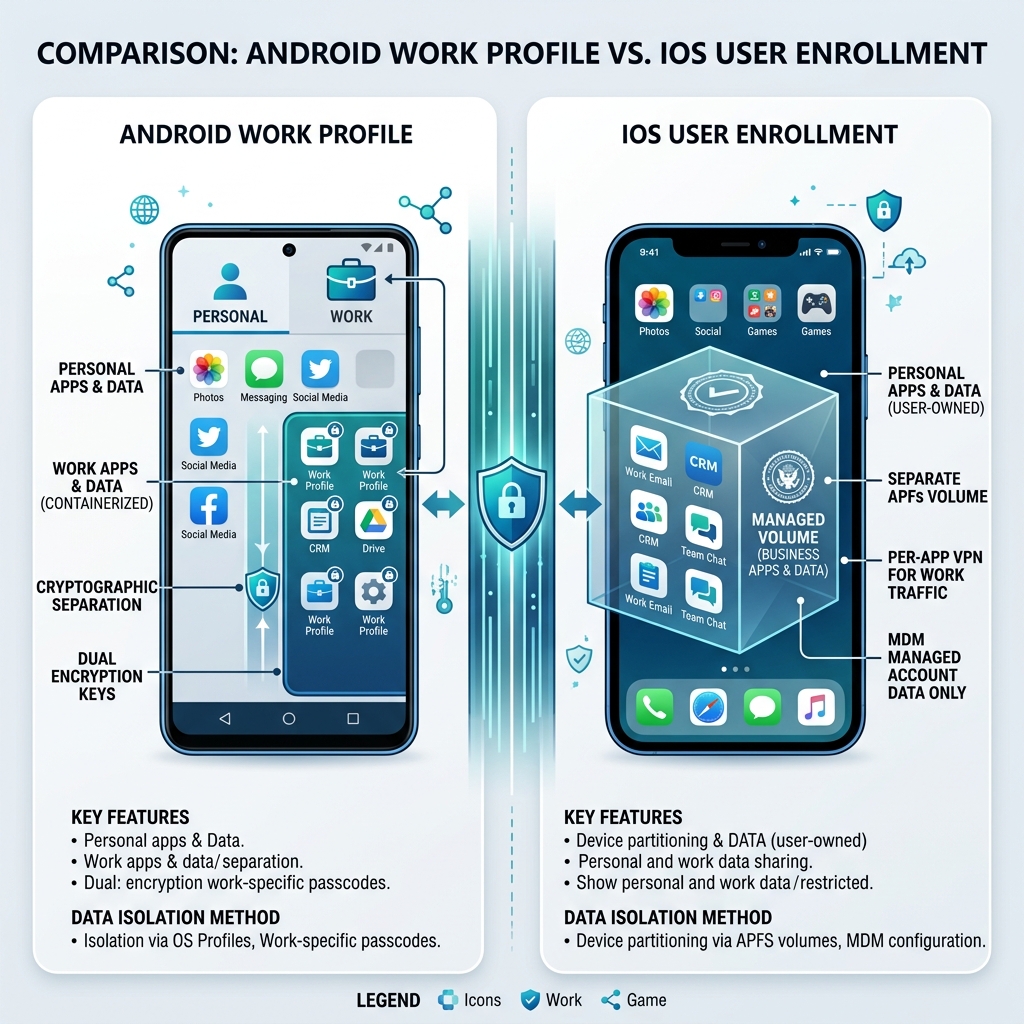 Mobile Data Separation
In the modern workplace, the line between personal and professional life is blurrier than ever. Users want the freedom to check Teams on their own phone, but IT needs to ensure that corporate data doesn't end up in personal TikTok drafts.
This guide covers the end-to-end deployment of a secure Bring-Your-Own-Device (BYOD) strategy using Microsoft Intune, focusing on Android Work Profiles and iOS User Enrollment.
1. Phase 1: Foundational Prerequisites
Before you can enroll a single device, your tenant must be 'Mobile Ready.'
Apple Push Notification Certificate (APNs)
For iOS management, Intune needs a handshake with Apple.- Navigate to Devices > iOS/iPadOS > iOS/iPadOS enrollment.
- Download the CSR and upload it to the Apple Push Certificates Portal.
- Critical: This certificate expires annually. Set a calendar reminder; if it expires, you lose communication with all iOS devices.
Android Enterprise Connection
Android management is now synonymous with Android Enterprise.- Go to Devices > Android > Android enrollment > Managed Google Play.
- Link your corporate Google account. This allows Intune to push apps from the Managed Play Store.
2. Phase 2: Choosing Your Enrollment Strategy
Not all enrollments are created equal. For BYOD, we want Data Separation, not device takeover.
Android: Personally Owned with Work Profile
This is the gold standard for Android BYOD. It creates a dedicated 'Work' tab in the app drawer.- User Privacy: IT cannot see personal apps, photos, or browsing history.
- IT Control: IT can wipe the Work Profile without touching personal data.
iOS: Account-Driven User Enrollment
Apple's modern BYOD method. The user signs into their Managed Apple ID in the Settings app.- Separation: Corporate data is stored on a separate, encrypted APFS volume.
- Experience: Seamless integration with Outlook and Teams without requiring a bulky management profile that controls the whole phone.
3. Phase 3: The Secret Sauce — App Protection Policies (MAM)
Enrollment is only half the battle. Mobile Application Management (MAM) is what actually secures the data inside the apps.
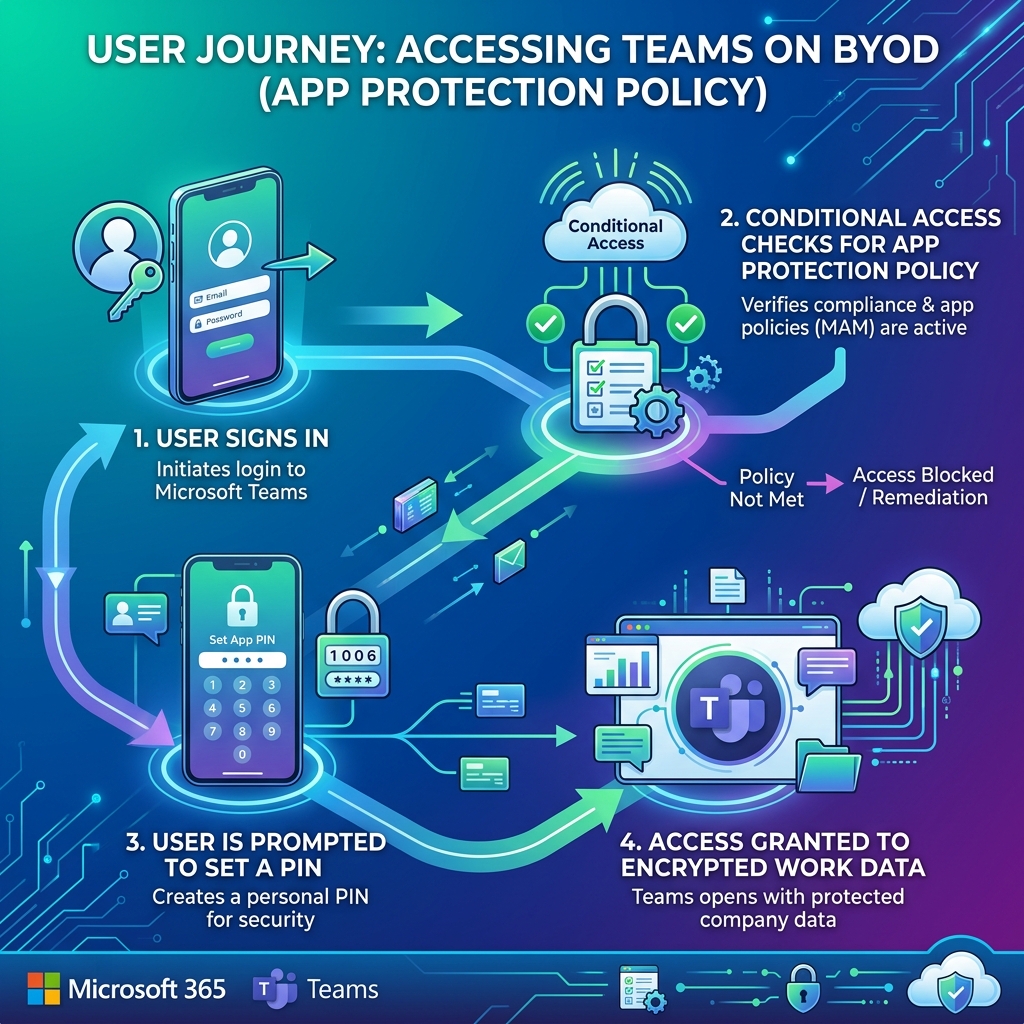 MAM and Conditional Access Workflow
Recommended 'Gold Standard' MAM Settings
| Setting Area | Recommended Configuration | Why? |
|---|---|---|
| :--- | :--- | :--- |
| Data Transfer | Block 'Save As' to personal storage | Prevents users from saving work attachments to personal OneDrive/Dropbox. |
| Data Transfer | Restrict Copy/Paste | Only allow 'Paste' between managed apps. No work data into personal apps. |
| Access Requirements | Require PIN | Enforces a 4-6 digit PIN specifically for work apps, separate from the phone passcode. |
| Conditional Launch | Block Jailbroken/Rooted | Ensures the OS integrity hasn't been compromised. |
| Selective Wipe | Wipe on 5 failed PIN attempts | Automatically clears work data if someone tries to brute-force the app PIN. |
4. Phase 4: Enforcing Access with Conditional Access (CA)
How do you force users to use your secured apps? Conditional Access is the 'Bouncer' at the door.
The 'Secure Mobile' CA Policy:
- Users: All Users (excluding a break-glass account).
- Target Apps: Office 365 (Exchange Online, Teams, SharePoint).
- Conditions: Device Platforms (iOS, Android).
- Grant Controls:
- Require App Protection Policy: Ensures MAM is active.
- Require Approved Client App: Ensures they use Outlook/Teams, not the native mail app.
5. Deployment Checklist: Step-by-Step
For Android Work Profile:
- Create Enrollment Restriction: Ensure 'Android Enterprise (Work Profile)' is allowed.
- Deploy Managed Apps: Add Outlook and Teams from the Managed Google Play store and assign them as 'Required' to your BYOD group.
- Configure App Protection: Assign your Android MAM policy to the same group.
For iOS User Enrollment:
- Configure Enrollment Type: Set the default to 'User Enrollment' in the enrollment profile.
- Deploy Apps: Add Outlook and Teams from the iOS App Store and assign as 'Required.'
- Configure App Protection: Assign your iOS MAM policy.
6. The End-User Experience (UX)
User adoption depends on trust. Make sure your documentation highlights:
- 'What We Can See': App versions, OS version, device model.
- 'What We CANNOT See': Personal texts, photos, bank apps, call history.
When the user first opens Teams, they'll be prompted that the app is now 'Managed by your organization.' They'll set their PIN, and within seconds, their work data is encrypted and separated from their personal life.
Conclusion
BYOD is about balance. By combining Android Work Profiles or iOS User Enrollment with robust App Protection Policies, you provide users with the tools they need while maintaining a zero-trust security posture.
Stop managing the hardware, and start managing the data.